Exercise #1

Welcome!

Welcome to the ITS 23 Things program and blog. Chances are that if you've found your way here, you are:
  • An ITS staff member who is participating in the Summer of 2.0 learning challenge.

  • Interested in learning about and playing around (yes, playing is allowed) with some web 2.0 tools that will help you expand your personal and professional technology skills.

  • Want to show off the Web 2.0 skills that you already have and help your colleagues refine their skills along the way.

  • Are just interested in another ITS shirt and impressing your peers with your initiative and interest in learning :)
Either way… I'm glad you're here!!

Learning 2.0 is online learning program that encourages staff to learn more about emerging technologies on the web that are changing the way people, society, organizations, institutions, libraries, and patrons access information and communicate with each other.

Over the course of the next eight and a half weeks, this website will highlight “23 Things” and discovery exercises to help staff become familiar with blogging, RSS news feeds, tagging, wikis, podcasting, online applications, and video and image hosting sites.

To familiarize yourself with this project, be sure to read the About/FAQs page. Hopefully, the FAQs will answer most of your questions about this program. If not, then please add your question to the FAQ page as a comment.

Exercise #2

Lifelong Learning

Learning keeps life interesting--at work, home, and at play. One of the reasons to participate in the Summer of 2.0 program is to learn new about some new skills and tools that can enable you to explore your own interests online. Of course these tools are useful for the work environment, too! Lifelong learning is a continual process. I hope that this program will contribute to your own personal and professional development. It makes sense that before embarking on this new online learning and discovery journey that we should take a few minutes to review a few habits that can assist in creating lifelong learners.

These habits, called the Seven and 1/2 Habits of Highly Successful Lifelong Learners, will provide you with a refresher on what it means to be a lifelong learner.

***Please note: The tutorial was created by Lori Reed at Public Library of Charlotte and Mecklenburg County. At the end of the tutorial, she invites her staff to send questions and comments to the We Value Your Opinion Link. This goes to her at PLCMC. Please do not use this link. Instead, add a post to your blog about what you think about the tutorial (you will create your blog in step #3, although you may have started already!!).

Discovery Exercise:

  1. Make sure you have headphones or speakers attached to your computer.
  2. Open up the 7 & 1/2 Habits online tutorial and view the online tutorial.
  3. As you watch and listen, write down which habit among the 7 & 1/2 that is easiest for you and which is hardest. You will use your personal blog (which you will set up next as part of exercise #3) to post your thoughts about lifelong learning.

Exercise #3

Grab yourself a blog in 3 easy steps


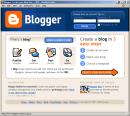
Now that you’ve done some exploring around this website and understand how this program will work, it’s time to setup your very own personal blog to begin recording your thoughts, discoveries and exercises in. For this program, I recommend that you use Blogger*, a popular free online blog hosting service that is extremely easy to use.

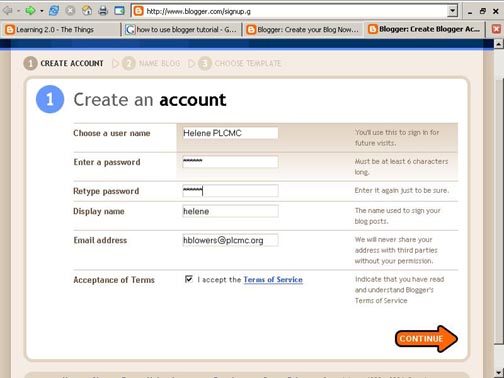
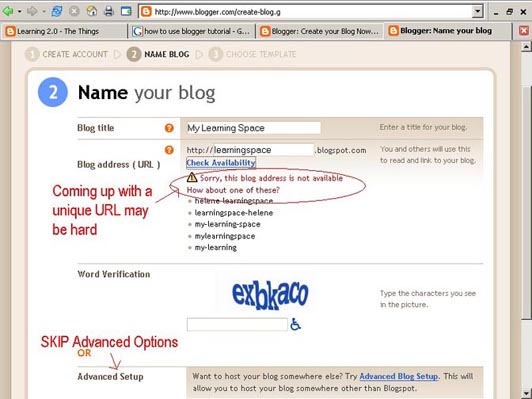
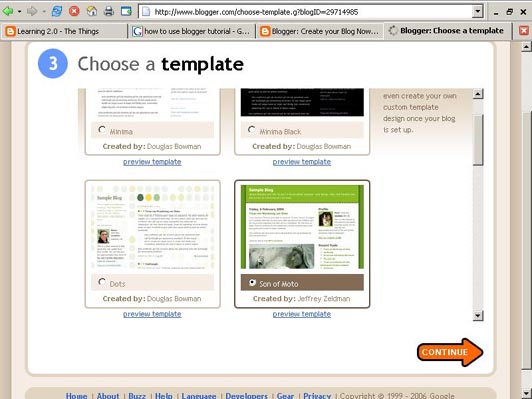
Creating a blog using Blogger takes just three steps:
  1. Create an account (view screenshot)

  2. Name your blog (view screenshot)

  3. Select your template. (view screenshot)
Once you’ve created your blog here are two important things to know:
  • To add posts: The maintenance interface that you will use to add posts, edit or change the step-up your blog is accessed online at http://www.blogger.com/ Be sure to write down your login and password.
  • To view your blog: Your blog address is http://(xxxx).blogspot.com, (xxxx)=the unique identifier you entered in Step 2. Be sure to also write down your blog address.
If you run into problems or would like more information about blogs and using Blogger here are some discovery resources you can use:

OK -- Now, it’s your turn...

Discovery Exercise:
  1. Setup a blog for yourself through Blogger.

  2. Add a test post or two.
    Note: Use one of your test posts to create an entry about the habits among the 7 and 1/2 lifelong learning habits that is easiest and hardest for you & why.

  3. Have fun!!!!
IMPORTANT NOTE: How you choose to identify yourself on your blog is your choice. You can blog under a screen name, anonymously, or as yourself. However, in order to qualify for the staff incentives, you will need to send me, Bethany, an email to register your blog on our Participants blog. You will do this in exercise #4.

* Use of Blogger is only a recommendation. If there is another blog hosting site that you are more comfortable with, please feel free to use it.

Exercise #4

Registration!


If you've made it this far, you have already completed three things on the list, so you are off to a good start! Now the real fun will begin--you can chart your progress and check on the progress of you collegues as well. Hey, you might even learn something about your coworkers.

In order to qualify for the ITS shirt, you must do two things:

1. Register your blog with me by sending me, Bethany, an email with your blog link and name so I can add it to our Participants Blog, where you will be identified by the name of your blog.

2. You also need to record your progress on each of the 23 Things on your blog.
Reminder: Clearly identify each week and each exercise in your entries.

Remember, you only have 19 more to go! Have FUN :)

Exercise #5

Flickr

Photo sharing websites have been around since the 90s, but it took a small startup site called Flickr to catapult the idea of “sharing” into a full blown online community. Within the past year, Flickr has become the fastest growing photo sharing site on the web and is known as one of the first websites to use keyword “tags” to create associations and connections between photos and users of the site. For this discovery exercise, you are asked to take a good look at Flickr and discover what this site has to offer.

Discovery Resources:

Discovery Exercise: In this discovery exercise, you have two options…

1. Take a good look around Flickr and discover an interesting image that you want to blog about. Be sure to include either a link to the image or, if you create a Flickr account, you can use Flickr's blogging tool to add the image in your post. Another option you have for including images in your post is to use Blogger's photo upload tool.


-- OR --


2. If you're up to an easy challenge ... create a Free account in Flickr and use the digital camera available in the Media Center (or your own camera) to capture a few pictures of the university and/or ITS services. Upload these to your Flickr account and tag at least one of the images "uviits" and mark it public. Then create a post in your blog about your photo and experience. Be sure to include the image in your post. Once you have a Flickr account, you have two options for doing this: through Flickr's blogging tool or using Blogger's photo upload feature.


So go ahead, explore the site and have some Flickr photo fun and if you're interested in looking at some photo hosting sites, then why not check out this Wired story.

PS: A quick word about photo posting etiquette - When posting identifiable photos of other people (especially minors) is it advisable to get the person's permission before posting their photo in a publicly accessible place like Flickr. Never upload pictures that weren't taken by you (unless you have the photographer's consent) and always give credit when you include photos taken by someone else in your blog.

Exercise #6

More Flickr Fun

S U M M e R 2 Period 0


Like many web 2.0 sites, Flickr has encouraged other people to build their own online applications using images found on the site. Through the use of APIs (application programming interfaces), many people have created third party tools and mashups* that use Flickr images. Here are just a sampling of a few …

  • Mappr - allows you to take Flickr images and paste them on a map

  • Flickr Color Pickr - lets you find public photos in Flickr that match a specific color.

  • Montagr – create a photo mosaic from photos found on Flickr.

Discover more mashups, web apps, and Flickr tools.

Discovery Exercise:

Your discovery exercise for this “thing” is to:

  1. Explore some of the fun Flickr mashups and 3rd party tools that are out there.

  2. Create a blog post about one that intrigues you.
A very cool (okay, to some of us) tool is FD ToysTrading Card Maker. So have some fun discovering and exploring some neat little apps. If you're up to the challenge while you’re at it, why not create a trading card of your own. :)

* Mashup Note: Wikipedia offers some great articles that explain mashups. Basically they are hybrid web applications that take features from one application (like Flickr) and mash it up with another (like a map). In this example, you get Mappr (http://mappr.com/).

PS: Summer 2.0 image created by Spell with Flickr.

Exercise #7

Blog about technology

This is an easy one :)
  • Add a post about anything (yes, anything) technology related to your blog.

  • Add a comment to another participant's blog.
Web 2.0 tools are not only about sharing information and being creative, but also about communicating.

Exercise #8

Make life "really simple" with RSS & a newsreader

RSS stands for “Really Simple Syndication” and is a file format for delivering regularly updated information over the web.

Just think about the websites and news information sources you visit every day. It takes time to visit those sites and scour the ad-filled and image-heavy pages for just the text you want to read, doesn’t it? Now imagine if you could visit all those information sources and web pages in just one place and all at the same time … without being bombarded with advertising… without having to search for new information on the page you’d already seen or read before… and without having to consume a lot of time visiting each site individually. Would that be valuable to you? Well, it’s available now through a newsreader and RSS.

This week’s discovery exercises focus on learning about RSS news feeds and setting up a Bloglines account (a free online newsreader) for yourself to bring your feeds together.

Discovery Resources:

Discovery Exercise:
  1. Follow the discovery resources above to learn more about RSS and newsreaders.
  2. Create a free online Bloglines account for yourself and subscribe to at least 10 newsfeeds to your reader. See Using Bloglines Tutorial steps 1-3 for instructions.

    Newsfeeds:
    • Summer 2.0 participant blog feeds - Subscribe to several of your co-workers' feeds. This is as easy as typing the blog URL into the subscribe field in Bloglines. Try it, it's easy!

    • Then try adding a few other types of news feeds from other web sources.

  3. Create a post in your blog about this exercise.

Don’t know what to blog about? Think about these questions:
What do you like about RSS and newsreaders?
How do you think you might be able to use this technology in your work or personal
life?
How can organizations (like UVI or the UVI libraries) use RSS or take advantage of
this new technology?

***If you want to make your Blogline's account public (so that you can share your favorite feeds with others) make sure that you select the radio button to "Yes, publish my Blogroll." Your Blogroll will be accessible at: www.bloglines.com/public/your username here. Here is link to my public Blogline's account:
http://www.bloglines.com/public/bwilkes

PS: Once you tackle this discovery exercise, you've tackled the most difficult one of the whole 23. :)

Exercise #9

Finding Feeds

Now that you have a newsreader (your Bloglines account), you can begin adding other newsfeeds that interest you. There are several ways you can locate newsfeeds:

  • When visiting your favorite websites -- look for news feed icons that indicate the website provides it. Often a feed icon will be displayed somewhere in the navigation bar of the site. (Here's an image that contains a sampling of several feed icons).

  • Use Blogline's Search tool - Bloglines recently expanded search tool lets you search for news feeds in addition to posts, citations and the web. Use the Search for Feeds option to locate RSS feeds you might be interested in.

  • Other Search tools that can help you find feeds:

    • Technorati - Technorati is a popular blog finding tool that lets you search for blogs. Since RSS feeds are inherent to all blogging tools, Technorati Blog Search can help you find RSS feeds for topic specific blogs you may be interested in.
      Additonal Resource: Technorati Tutorial on finding and adding your blog.

    • Feedster - One of the largest collections of RSS feeds, Feedster lets you search for feeds in three categories: news, blogs & podcasts

    • Topix.net - This search tool allows you to locate recent newsfeed items based upon keyword or phrase searching. The tool focuses specifically on news and media outlet RSS feeds for information, not weblogs.

Discovery Excercise:
  1. Explore some of the search tools noted above that can help you locate some news feeds.

  2. Create a blog post about your experience. Don't know what to blog about? Here some questions to think about ...
    Which method of finding feeds did you find easiest to use? Which Search tool was the easiest for you? Which was more confusing? What kind of useful feeds did you find in your travels? Or what kind of unusual ones did you find? What is your favorite feed that you found?

Exercise #10

Play around with generators

Generators? No, I’m not talking about those gas powered back-up things that are handy after hurricanes. The generators I’m talking about allow you to easily manipulate image and graphics to create fun images like these:


For this discovery exercise, I just want you to have fun. Find a few fun image or text generators to play around with and write a post in your blog about one of your favorites and display the result. Often adding the image you mocked up to your blog is as simple as copying and pasting code that the page provides. If not, you may just need to right click on the image and then save it to your hard drive before using Blogger’s image button to add it to your post.

If you’re having difficulty getting your image added to a post in your blog, ask a co-worker for help.

Discovery Resources:

The Generator Blog (warning--there's no telling what this guy will post!)
Letter James
FD Toys
Also try searching for online generators, text generators or image generators!

Discovery Exercise:
1. Play around with some image generators and find one that you like.

2. Post the result of your discovery process in your blog.

Note: Be sure to include a link to the image generator itself, so other participants can discover it too. So take some time and have fun with this exercise.

Exercise #11

Library Thing

Are you book lover? Or do you enjoy finding lost and forgotten gems on the shelf to read? Then LibraryThing may be just the tool for you. Developed for booklovers, this online tool not only allows you to easily create an online catalog of your own it also connects you to other people who have similar libraries and reading tastes. Add a book to your catalog by just entering the title or connect with other users through your similar reading tastes. There are lots of ways to use LibraryThing. So why not join the ranks and create your own library online. With over 65,000 registered (BTW: LibraryThing also has group forum for librarians users and over 4.7 million cataloged books, you're bound to discover something new).

Discovery Resources:
About LibraryThing
Library Thing tour
MoBuzzTV Review (3rd story in the 5 min broadcast)
LibraryThing blog (updates & news)


Discovery Exercise:
  1. Take a look around LibraryThing and create an account.

  2. Add a least 5 books to your library.

  3. Blog about your findings and be sure to link to your LibraryThing catalog.

Exercise #12

Roll your own search engine
Do you have a group of websites that are your favorites? Rollyo may be the tool for you. Rollyo allows you to create your own search tool for the just the websites you know and trust. Take a look at some of these search rolls that have already been created:

Explore other rolls here.

Discovery Exercise:
  1. Explore Rollyo and create an account for yourself.

  2. Create a search roll for any subject you like.

  3. Create a post in your blog about your experience and link to your search roll. Can you see a potential use for tools like this?

Exercise #13

Tagging, folksomonies & social bookmarking in Del.icio.us

Tagging is an open and informal method of categorizing that allows users to associate keywords with online content (webpages, pictures & posts). Unlike library subject cataloging, which follows a strict set of guidelines (i.e.Library of Congress subject headings), tagging is completely unstructured and freeform, allowing users to create connections between data anyway they want. In the past few weeks, we’ve already explored a few sites – Flicker and LibraryThing to name two --that allow users to take advantage of tagging.

This week, in addition to exploring Technorati tagging, we want to also take at popular social bookmarking site called Del.icio.us (typed in as http://del.icio.us). Del.icio.us is a social bookmarking manager which allows you to bookmark a web page and add tags to categorize your bookmarks. Many users find that the real power of Del.icio.us is in the social network aspect, which allows you to see how other users have tagged similar links and also discover other websites that may be of interest to you.

You can think of it as peering into another users’ filing cabinet, but with this powerful bookmarking tool each user's filing cabinet helps to build an expansive knowledge network. For this discovery exercise, you are asked to take a look at Del.icio.us and learn about this popular bookmarking tool.


Discovery Exercise:
  1. View the 12 minute Del.icio.us tutorial to get a good overview of its features.

  2. Explore the site options and try clicking on a bookmark that has also been bookmarked by a lot of other users. Can you see the comments they added about this bookmark or the tags that they used to categorize this reference?

  3. Create a blog post about your experience and thoughts about this tool. Can you see the potential of this tool for research assistance? Or just as an easy way to create bookmarks that can be accessed from anywhere?

  4. OPTIONAL: If you’re up to the challenge, create a Del.icio.us account for yourself and discover how this useful bookmarking tool can replace your traditional browser bookmark list. You might even want to explore Del.icio.us’ latest addition, a network badge. (Psst! see it over there at the end of the navigation sidebar)

Note: If you do setup a Del.icio.us account, here’s a quick word about the Del.icio.us Buttons. On PCs that have the toolbars locked down, these will install as options in your browser bookmarks. Use the “Post to my Del.icio.us” link to add the current webpage to your account (you may need to log in). Use the “My Del.icio.us” link to view your online account.

Exercise #14

Getting not-so-technical with Technorati

So now that you’ve been blogging for awhile, you might be wondering just how big the blogosphere is. Well, according to Technorati, the leading search tool and authority for blogs, the number of blogs doubles just about every 6 months with over 51 million blogs currently being tracked by the site. If the blogging trend continues, it is estimated that Technorati will have tracked its 100 millionth blog in just 5 months.

Yes, these numbers are astounding, but as you’ve already seen for yourselves, blogging is so easy that these publishing tools are being taken advantage of by almost every industry.

So how does a person get their blog listed as part of the blogosphere, and how can you tag your posts with keywords to make them more findable through a Technorati search? The answer to the first question is that your blog is probably already being captured by Technorati due to the fact that you're already using Blogger, the most popular blogging tool. But if you want to join the party and have your blog officially listed on Technorati and also take advantage of the watchlist and other features, you’ll need to claim your blog yourself. As for tagging posts with Technorati tags? This is easy, too. All you need to do is add a little bit of HTML code to the bottom of your post (see my example below) and Technorati will pick up these tags when it spiders (or web crawls) your site.

There are a lot of new features that have been added to Technorati this past summer, including new ways to search for blogs. You can search for keywords in blog posts, search for entire blog posts that have been tagged with a certain keyword, or search for blogs that have been registered and tagged as whole blogs about a certain subject (like photography or information technology).

Discovery Resources:
Technorati Tour
– videocast of new features & new look
Technorati Discover & Popular features

Discovery Exercise:

  1. Take a look at Technorati and try doing a keyword search for “Web 2.0” in posts, blogs, and quickview tabs. Are the results different?

  2. Explore popular blog, searches and tags. Is anything interesting or surprising in your results?

  3. Create a blog post about your discoveries on this site.

OPTIONAL: If you're up for a challenge, learn how to tag your posts by with Technorati tags so they can join tag searches. Create a post about something. It can be anything you want and add the HTML code to the bottom to tag it as “itsummer2-0.” You may also want to consider claiming your blog and creating a watchlist. NOTE: When adding HTML code, you'll want to make sure you're in Blogger's Edit HTML window.

Exercise # 15

On Web 2.0 & Library 2.0

Now that you have been working with a few web 2.0 tools (and tricks!), it seems like a good time to explore some perspectives on Web 2.0 and an extension of it--Library 2.0.
Library 2.0 is term used to describe a new set of concepts for developing and delivering library services. The name, as you may guess, is an extension of Web2.0 and shares many of its same philosophies and concepts including harnessing the user in both design and implementation of services, embracing constant change as a development cycle over the traditional notion of upgrades, and reworking library services to meet the users in their space, as opposed to ours (libraries).

Discovery Resources:

Web 2.0--What is Web 2.0?, Discover--Emerging Techlogy
Library 2.0--Web 2.0: Where will the next generation of the web it take libraries? and Away from Icebergs.

Wikipedia – Web 2.0, Library 2.0
Library 2.0 Discussions (list of great references from Wikipedia)

Discovery Exercise:

  1. Read perspective or more from the articles above on Web 2.0 and/or Library 2.0.
  2. Create a blog post about your thoughts on any one of the articles. What do you think about Web 2.0/Library 2.0? Are they useful means of communicating and sharing information? Is this 2.0 stuff just hype and an excuse to generate funny images?? What do you think?

Exercise #16

What's in a wiki?

A wiki is a collaborative website and authoring tool that allows users to easily add, remove and edit content. Wikipedia, the online open-community encyclopedia, is the largest and perhaps the most well known of these knowledge sharing tools. With the benefits that wikis provide the use and popularity of these tools is exploding.

Some of the benefits that make wikis so attractive are:
  • Anyone (registered or unregistered, if unrestricted) can add, edit or delete content.
  • Tracking tools within wikis allow you to easily keep up on what been changed and by whom.
  • Earlier versions of a page can be viewed and reinstated when needed.
  • And users do not need to know HTML in order to apply styles to text or add and edit content.

As the use of wikis has grown over the last few years, organizations all over the country have begun to use them to collaborate and share knowledge. Among their applications are internal communications, information for customers/patrons, and FAQs.

Discovery Resources:
While these resources focus on the use of wikis in libraries, the concepts are applicable to numerous organizations, businesses, and departments. Use these resources to learn more about wikis:
Discovery Exercise:

  1. For this discovery exercise, you are asked to take a look at some wikis and blog about your finding. Here’s a few examples to get you started:

    • ResilNetsWiki– a wiki "designed to facilitate collaboration and provide the content for the ResiliNets portals" at the University of Kansas and Lancaster University
    • Book Lovers Wiki - developed by the Princeton Public Library
    • ASU Wiki Directory- link to one of the many wikis at Arizona State University to discover how they are using wikis.
    • Any wiki on a topic in which you are interested.


  2. Create a blog post about your findings. What did you find interesting? What types of applications within ITS might work well with a wiki?


So what's in a wiki? Find out by doing some exploring on your own.

Exercise # 17

#17 Playing around with PBWiki

"Sandbox" is the term that wikis often use to describe the area of the website that should be used for pure play. For this discovery and exploration exercise, we’ve set up a Summer 2.0 Favorites wiki* that’s for nothing but play!

For this “explore-and-play-with-wikis” exercise, you are asked to add an entry or two to the PBwiki Summer 2.0 Favorites wiki. The theme of this wiki is simply “Favorites” : Favorite books, favorite vacation spots, favorite restaurants, favorite anything …all you need to do is play and add your thoughts. To mark your adventure on this site, you should add your blog to the Favorite Blogs page.

Discovery Resources:


Discovery Exercise:

  1. Access the Summer 2.0 wiki and create a login account for yourself.
  2. Add your blog to the Favorite Blogs page. That's how we'll know that you've been there.
  3. Add a favorite or two to a few other pages (Favorite books, favorite vacation spot, etc). And, if you feel up to the challenge, you might even want to create a separate page for book review or short travel essay and link up to that.
  4. Create a post in your blog about the experience.


* NOTE: The Summer 2.0 Favorites wiki was created using the free version of PBWiki, a tool that lets you create webpages that anyone can edit.

Exercise #18

Web based applications


The availability and use of online productivity web-based applications (think word processing and spreadsheets) has exploded over the past two years and for good reasons! These powerful applications provide users with the ability to create and share documents over the internet without the need of installed desktop applications.

One large benefit to web-based applications it that they eliminate the need to worry about different software versions or file types as you email documents or move from PC to PC. Another bonus is that they easy accommodate collaboration by allowing multiple users to edit the same file (with versioning) and provide users the ability to easily save and convert documents as multiple file types (including HTML and pdf). And, you can even use many of these tools, such as Zoho Writer and Google Docs to author and publish posts to your blog. It’s this type of integration with other web 2.0 tools that also makes web-based apps so appealing.

For this discovery exercise, participants are asked to take a look at a web-based word processing tool called Zoho Writer, create a simple document and then document your discoveries in your blog. If you're up to the challenge, you might even export your document as an HTML file or publish it through Zoho to your blog.

Zoho even offers applications like spreadsheets, a planner, chat, and more. Erik and I are using Zoho to create an ITS wiki to use with students during orientation.

With Zoho and web-based applications, the possibilities are endless.

Discovery Resources:

Zoho
Writeboard
Google Docs

Discovery Exercise:
  1. Create a free account for yourself in Zoho Writer.
  2. Explore the site and create a few test documents of two.
  3. Try out Zoho Writer’s features and create a blog post about your discoveries.

Optional: If you're up for the challenge, try using Zoho’s "publish" options to post to your blog.

* Note: You can also explore Google Docs or Writeboard as an option for this exercise. However, even though I am a huge Google fan, I recommend Zoho due to its usability and features.

BTW: Here’s a document (viewable as a webpage) I mocked up in Zoho about some of the features I found beneficial.

Exercise #19

Discovering web 2.0 tools

Throughout the course of this Learning 2.0 program we’ve explored just a small sampling of these new internet technologies and websites that are empowering users with the ability to create and share content. But given time there are so many more we could explore. Time will only tell which of these new collaborative, social networking and information tools will remain on top, one thing is for sure, they're not going to go away (at least anytime soon).

For this discovery exercise, participants are asked to select any site from this list of Web 2.0 Awards nominees and explore it. With so many to choose from, it might be handy to first select a category that interests you (like Books or Personal Organization) and then simply select a tool/site to explore. Be careful to select a tool that is Free and that doesn't require a plug-in or download. The majority of these free, so this shouldn’t be a problem.

Discovery Exercise:
  1. Select any site/tool from the list of Web 2.0 Awards nominees. (If you prefer to select from just the winners, here’s a link to the short list.)
  2. Explore the site you selected.
  3. Create a post about your discovery. What did you like or dislike about the tool? What were the site’s useful features? Could you see any applications for its use in a library setting?

Web 2.0 – with so much to explore, just start with ONE. :)

Exercise #20

Video Killed the Radio Star

Within the past year online video hosting sites have exploded allowing users to easily to upload and share videos on the web. Among all the web 2.0 players in this area, YouTube is currently top dog serving up over 1 million video views a day and allowing users not only to upload their own video content easily, but also embed clips into their own sites easily.

Do some searching around YouTube yourself and see what the site has to offer. You'll find everything from questions for the Democratic presidential candidate debate (and the responses) to P. Diddy looking for a personal assistant. Many organizations, institutions, and libraries are also using YouTube as an educational tool. You will find videos like What is Information Literacy? and Trinity University's You, Your Computer, and You. Of course, like any free site you’ll also find a lot stuff not worth watching too. But that doesn’t mean you shouldn’t explore and see for yourself what the site has too offer. :)

Discovery Exercise:

  1. Explore YouTube & find a video worth adding as an entry in your blog.
  2. Create a blog post about your experience. What did you like or dislike about the site and why did you choose the video that you did? Can you see any features or componets of the site that might be interesting if they were applied to library websites?
NOTE: Videos, like music downloads, are bandwidth hogs. It is recommended that you complete this exercise during light internet usage times.

Exercise #21

Podpeople--Podcasting

The word podcast is used to refer to a non-musical audio or video broadcast that is distributed over the Internet. What differentiates a podcast from regular streaming audio or video is that the delivery method for podcasts is often done automatically through RSS.

In 2005, "podcast" was named the "word of the year" by New Oxford American Dictionary and with the growth of podcasting over the last 24 months, it's easy to see why.

Podcasts take many forms, from short 1-10 minutes commentaries to much longer in person interviews or panel group discussions. There’s a podcast out there for just about every interest area and the best part about this technology is that you don’t have to have an iPod or a MP3 player to access them. Since podcasts use the MP3 file format, a popular compressed format for audio files, you really just need a PC (or portal device) with headphones or a speaker.

iTunes, the free downloadable application created by Apple is the directory finding service most associated with podcasts, but if you don’t have iTunes installed there are still plenty of options.

For this discovery exercise participants are asked to take a look at some popular podcast directory tools. Do some exploring on your own and locate a podcast that is of interest to you. Once found, you can easily pull the RSS feed into your Bloglines account as well, so that when new casts become available you’ll be automatically notified of their existence.

Discovery Resources:
Discovery Exercise:
  1. Take a look at one or two of the podcast directories listed and see if you can find a podcast that interests you. See if you can find some interesting library related podcasts here like book review podcasts or library news.
  2. Add the RSS feed for a podcast to your Bloglines account
  3. Create a blog post about your discovery process. Did you find anything useful here?

Exercise #22

Audiobooks & e-Books

If you feel like you don't have time to read and/or study--listen to your books! You can download audiobooks from various sources, including iTunes and audible.com. You can also download audiobooks from Project Gutenberg--for free. The catch is that the books will be older, since Project Gutenberg includes only books whose copyright has expired in the USA book listings. You can also download e-Books through Project Gutenberg and other fee-based sites like amazon.com.

For this discovery exercise, I hope that you will familiarize yourself with books in different formats--audiobooks and/or eBooks.

Discovery Resources:

Bookspot--Where can I download books from the web?

Project Gutenberg
iTunes
audible.com
amazon.com--e-Books and Docs


Discovery Exercise:
  1. Browse at least two of the sites listed above. What types of books are included? Is it easy to find books in which you are interested? Did you find any books that you like for free???
  2. Identify at least one e-Book and one audiobook that interest you.
  3. Create a blog post about your findings.

Exercise #23

Yippeee!!!!

Wow! Congratulations!! You’ve reached the 23rd thing. Be sure to give yourself a pat on the back for completing the program. If you finished this before the extension date of September 5th you will receive a cool new ITS shirt!!

For your last and final exercise for this program please reflect on your learning journey and post a few thoughts. Here are some questions to prompt you if you're drawing a blank ...

  • What were your favorite discoveries or exercises on this learning journey?
  • How has this program assisted or affected your lifelong learning goals?
  • Were there any take-aways or unexpected outcomes from this program that surprised you?
  • What could we do differently to improve upon this program’s format or concept?

    And last but not least…

  • If we offered another discovery program like this in the future, would you again chose to participate?
Thanks for your participation! I hope that you learned a few fun/useful things and that you have increased your understanding of how people access, use, and share information.

Cheers!